ERPNext POS · 02 / Configure
How to Set Up an ERPNext POS Profile
Set up an ERPNext POS Profile with a warehouse, price list, cashier access and payment methods, then check readiness before selling.
By 1 POS Pay · · 3 min read
Prepare the records first
Confirm the company, currency, selling price list and warehouse. Check that products have the intended selling prices and that physical inventory has been received into the warehouse you will use. An item catalogue is not an opening stock balance.
Ask the person responsible for accounts to approve the receipt accounts, change account, tax setup and write-off policy. Do not copy a tax template from another business without checking whether it applies.
Create the profile
Search ERPNext for POS Profile and create a record with a clear counter or location name. Select the company and warehouse, then choose the currency and selling price list. Add Cash, Credit Card, PayNow and Bank Transfer if these are the methods your business accepts.
Select one payment method as the default. This is the preselected method, not evidence that a customer paid. Check whether Set Grand Total to Default Payment Method is enabled, and train staff to replace the default allocation when a different payment method is used.
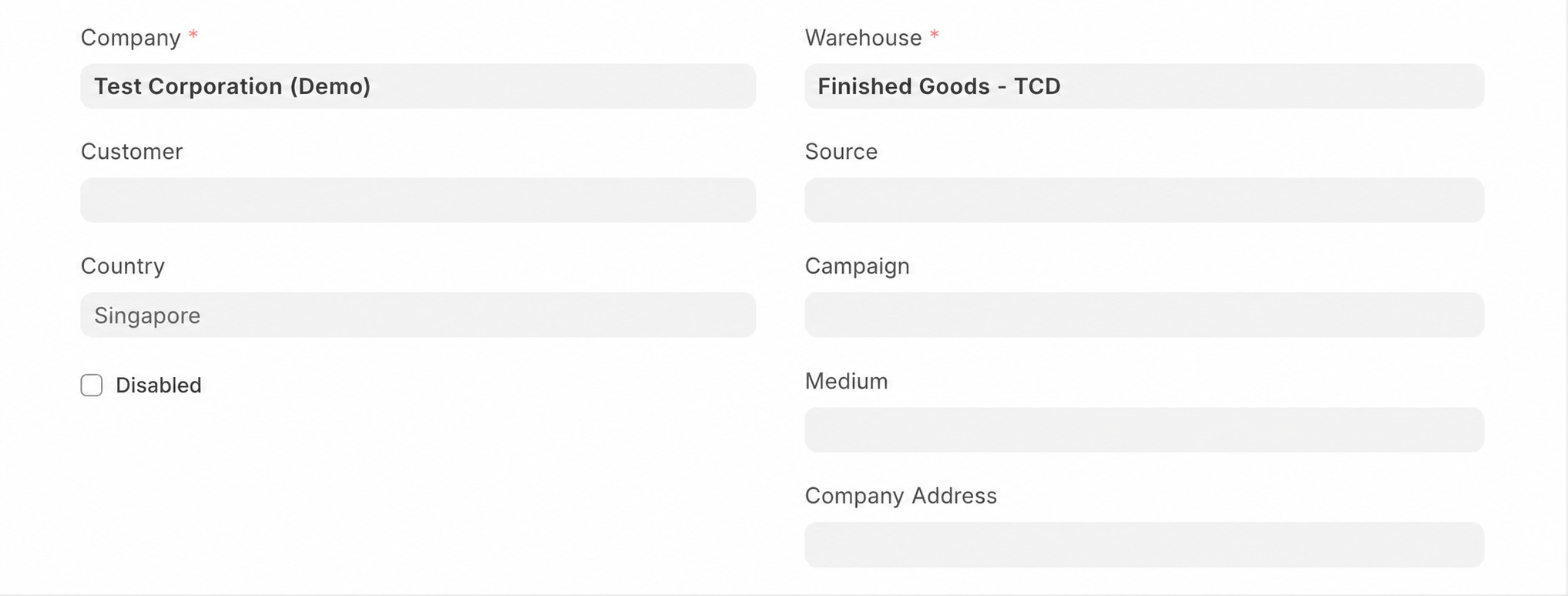
Set user and checkout controls
Add the intended cashiers under Applicable for Users and mark the profile as their default where appropriate. Profile assignment works alongside role permissions; it does not replace an access review.
Choose whether staff may edit rates or discounts, whether partial payment is permitted and how stock availability is validated. Keep these decisions consistent with the business process. Use a generic walk-in customer only when appropriate; select a named customer when the buyer needs an identifiable invoice.
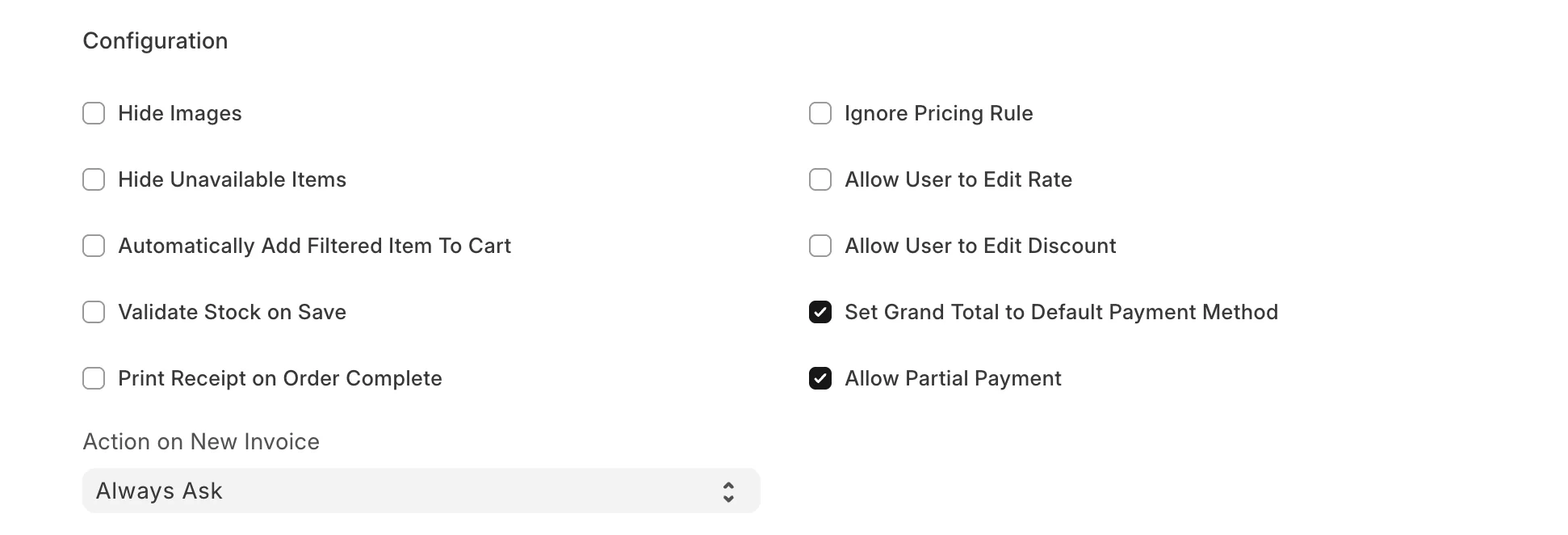
Validate before opening a live shift
Save the profile and sign in as a cashier to check that it is selectable. Verify the warehouse, price list and four payment choices. In a training environment, check a stock item, a non-stock service, a cash overpayment and a rejected insufficient-stock sale.
For change, the account must belong to the same company. Keep write-off limits deliberate: a write-off is not a substitute for recording the right tendered amount. Confirm the receipt layout and tax details with the business before taking real payments.
Common questions
Can all four methods be the default?
No. A profile has one default payment method and can offer several other payment choices.
Why can a user not see the profile?
Check that the profile is enabled, the user is included when the user table is restricted, and the account has the required ERPNext roles.
References and further reading
Prepared with Frappe documentation and the ERPNext v16 POS implementation. Check your installation’s settings when following these guides.