
ERPNext POS · 06 / Solve problems
ERPNext POS Troubleshooting: Stock, Prices and Payments
Troubleshoot missing products, incorrect prices, stock errors and payment-account issues in ERPNext POS with a focused checklist.
By 1 POS Pay · · 3 min read
An item is missing from checkout
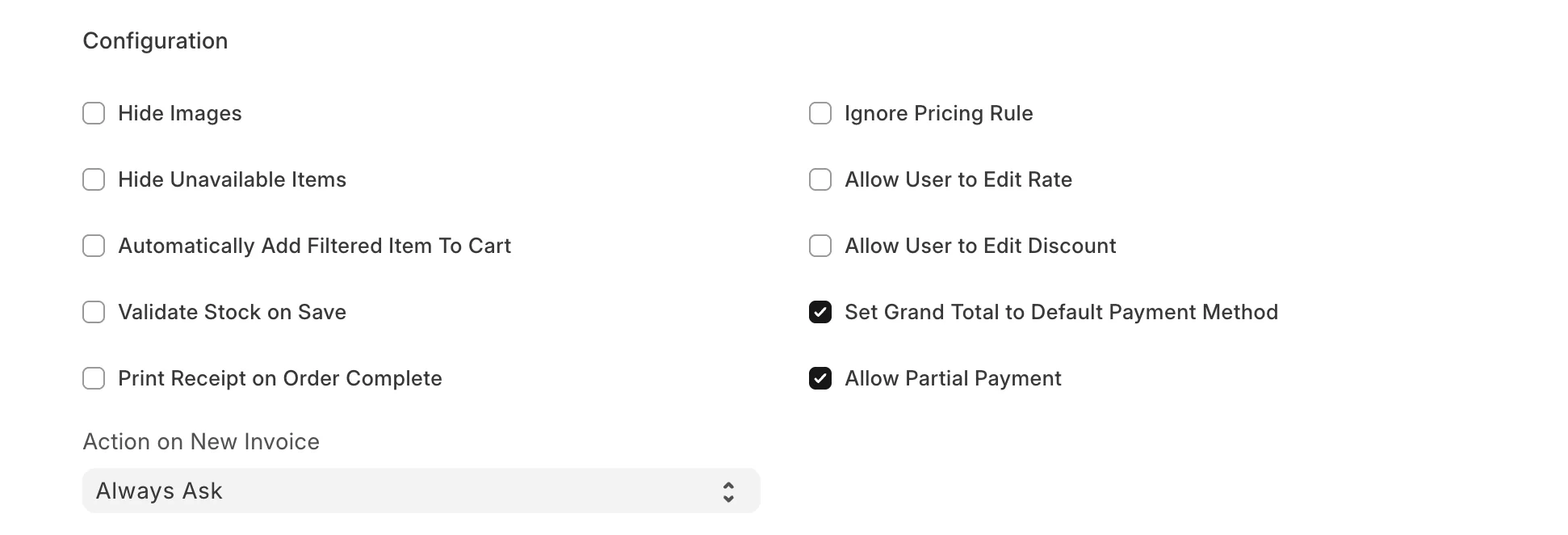
Check that the correct product variant is enabled and available for sale. Review the profile’s item-group restrictions and search terms. If Hide Unavailable Items is enabled, a stock item without available quantity may be hidden.
Verify the warehouse selected by the profile. Stock at another location does not mean it is available at this counter. Digital goods or services should have the appropriate non-stock treatment; do not disable stock tracking on a physical item simply to bypass an error.
A price is missing or unexpected
Check the profile’s selling price list and currency, then the Item Price for the exact item and unit. Review the effective dates and applicable pricing rules. A source-store price copied into a description does not automatically become an ERPNext selling price.
Confirm whether the expected amount includes tax. Review the configured tax treatment with the accounts team rather than changing item rates to disguise a mismatch. Use approved discounts only when a discount is actually intended.
A payment method cannot be used
Verify that the method is enabled and included in the current profile. Its account mapping must exist for the same company and point to an appropriate usable account. A group heading in the chart of accounts is not a posting account.
If a return cannot use the desired method, check Allow in Returns and permissions. If the total seems doubled, review whether the default cash allocation was left in place when another method was entered. Correct the allocation before submission.
Stock or closing errors need evidence
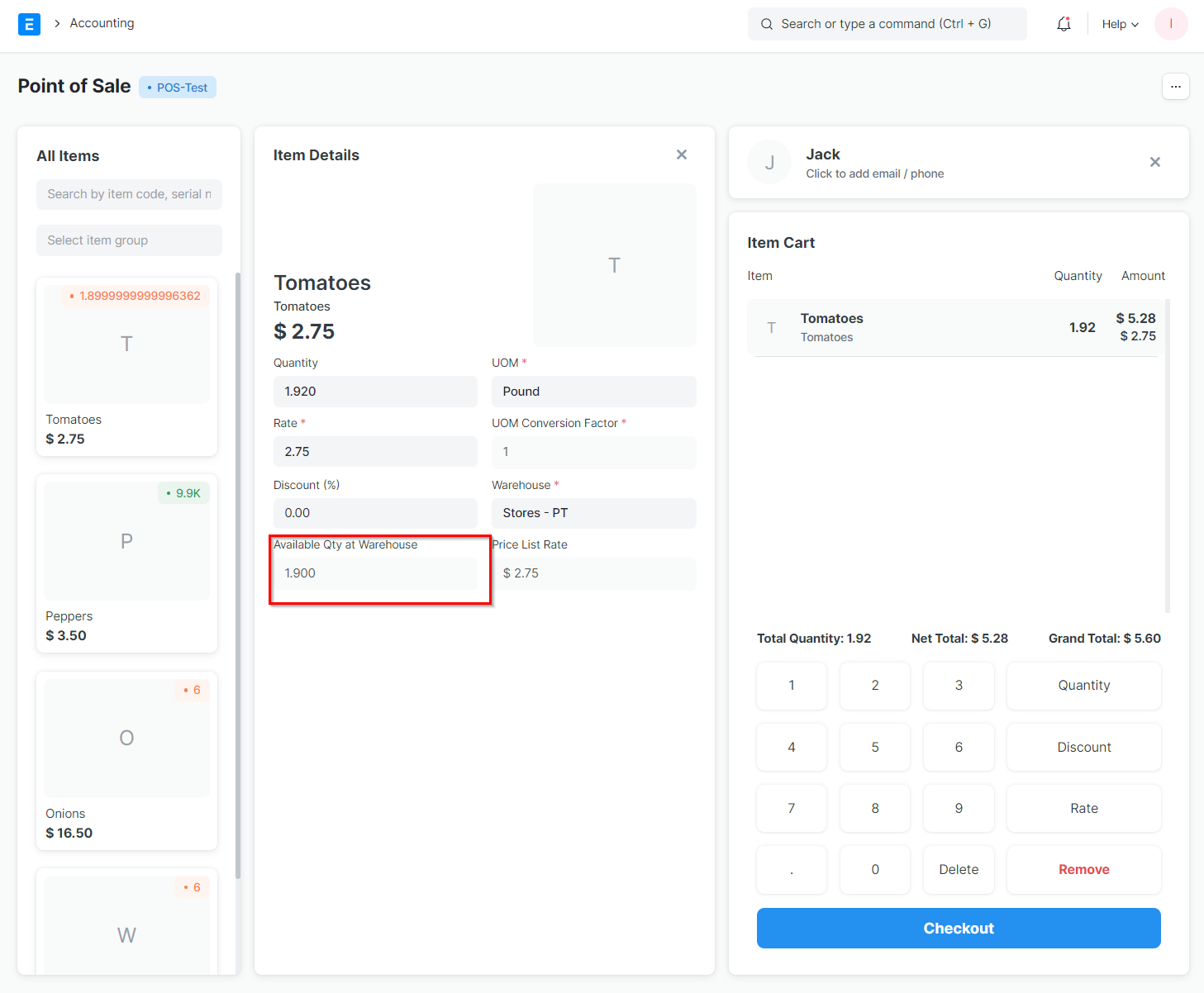
For insufficient stock, compare the actual warehouse quantity, reservations and open POS activity. Receive or reconcile genuine inventory through the approved stock process. Avoid enabling negative stock simply to finish a sale.
For closing failures, note the closing entry reference and exact error. Check the relevant invoices and whether any were already consolidated. Ask an administrator to inspect processing errors, account configuration or permissions. Do not delete transaction history or repeatedly create replacement entries.
Escalate with a useful support note
Record the ERPNext version, profile, timestamp, affected item and document reference, plus what you expected and what happened. Share screenshots through a private support channel with unnecessary customer details removed. Never include passwords, bank credentials or full payment-card details.
Common questions
Will importing products also create stock?
No. Product records, selling prices and stock quantities are separate. Verify actual inventory through the appropriate stock transactions.
What should staff do after a submission timeout?
Check whether the original invoice exists before retrying. This helps prevent duplicate records and repeated payment collection.
References and further reading
Prepared with Frappe documentation and the ERPNext v16 POS implementation. Check your installation’s settings when following these guides.